Emergency support
Basic information
In the Nissan Armada, NissanConnect Services provide a comprehensive range of emergency assistance features designed to support both the driver and passengers in critical situations.
For instance, in the event of illness, injury, or any emergency scenario, the Nissan Armada allows you to instantly request help by pressing the in-vehicle Emergency Call (SOS) button, which connects you directly to the NissanConnect Services Response Center.
Once connected, the Nissan Armada system uses GNSS technology to determine the exact vehicle location and transmit this information to emergency responders such as police, fire departments, or medical services when required.
For additional details regarding Nissan Armada emergency support services, you can contact NissanConnect Customer Support or visit the official NissanConnect website.
For models with ProPILOT Assist 2.1:
In the Nissan Armada equipped with ProPILOT Assist 2.1, if the vehicle performs an emergency stop, it can automatically connect to the SOS Response Center, where a specialist will coordinate assistance with appropriate emergency services.
WARNING
- The Nissan Armada Emergency Call and Automatic Collision Notification
services may not function under certain conditions:
- A valid NissanConnect Services subscription is not active.
- The Nissan Armada network or telematics system is disabled.
- The vehicle is outside the service coverage area.
- No cellular signal is available.
- The Nissan Armada is in areas with weak reception such as tunnels, underground parking, or mountainous regions.
- The communication line is busy.
- The TCU (Telematics Control Unit) or related systems are malfunctioning.
- The system may not activate depending on collision severity or conditions.
- The Nissan Armada Automatic Collision Notification feature may automatically connect to emergency services if a collision occurs or airbags deploy.
- Always park the Nissan Armada safely and apply the parking brake before pressing the SOS button.
- Use the Nissan Armada SOS system strictly for real emergencies. Misuse may result in penalties.
- Radio signals from the Nissan Armada telematics system may affect medical
devices such as pacemakers.
Users should consult device manufacturers before using the system.
- The Nissan Armada TCU antenna is located within the dashboard. Maintain a safe distance as recommended by medical device manufacturers.
- After an automatic emergency call is triggered, it is recommended to have the Nissan Armada system inspected and reset by an authorized dealer.
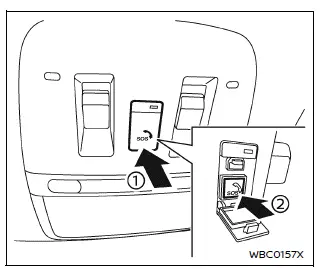
Making an emergency call
The Nissan Armada Emergency Call (SOS) button is positioned near the interior map light for quick access.
1. Turn the Nissan Armada ignition switch to the ON position.
2. Open the protective cover 1 to reveal the SOS button 2.
3. Press the SOS button 2 to initiate the emergency call.
4. Once connected, speak clearly with the NissanConnect Response Specialist and provide necessary details.
To cancel the emergency call in the Nissan Armada, press and hold the SOS button for several seconds.
NOTE:
- After pressing the Nissan Armada SOS button, connection may take a short time depending on network conditions and system usage.
- The indicator light on the Nissan Armada SOS button shows system readiness.
If it is not illuminated, the system may not connect.
The indicator will blink during an active connection.
- Even if the indicator is on, connection to the Nissan Armada Response Center may not always be possible. In emergencies, use alternative communication methods if necessary.
- To prevent call interruption, keep the Nissan Armada engine running during the emergency call if it is safe to do so.
This Nissan Armada safety system enhances peace of mind by providing immediate access to emergency assistance, making it a vital feature for modern driving security.
Other materials
The Braking Force of Parking Brake Is High
Description
The parking brake braking force is too high.
Diagnosis Procedure
PERFORM THE SELF-DIAGNOSIS
With CONSULT
Perform self-diagnosis for “ABS�.
Is any DTC detected?
YES>>
Check the DTC. Refer to DTC Index.
NO>>
GO TO 2.
CHECK REAR DISC BRAKE SYSTEM (1)
Check if the rear disc ...
Automatic Back Door Lock and Close Switch
Description
Automatic back door close function does not operate using automatic back door lock and close switch.
Diagnosis Procedure
CHECK AUTO OPEN/CLOSE FUNCTION
Check auto open/close function using automatic back door switch.
Is the inspection result normal?
YES>>
GO TO 2.
NO>>
Refe ...
Console Box Lamp
Exploded View
Console box lamp is integrated structure with front center console box. For exploded view of front center console assembly, refer to Exploded View.
Replacement
CAUTION:
Disconnect the battery negative terminal or remove power circuit fuse when performing the operation for preventing e ...