Work Procedure
If system detects that driver is not facing forward even though driver is facing forward, perform face recognition check.
PREPARATION BEFORE FACE RECOGNITION CHECK
Make sure that all of the following conditions are satisfied
-
vehicle speed is 0 km/h (stopped).
-
Shift position is "P" range.
-
Put driver's head on the headrest.
-
Adjust seat so that eye position is the same as the inner rear end of assist grip.
-
Adjust steering position to the lowest position and the farthest position from driver.
CAUTION:
-
It is necessary for another person to check the position of driver's eyes from the passenger side.
-
If the eye position is different from the specified position, face recognition cannot be performed correctly.
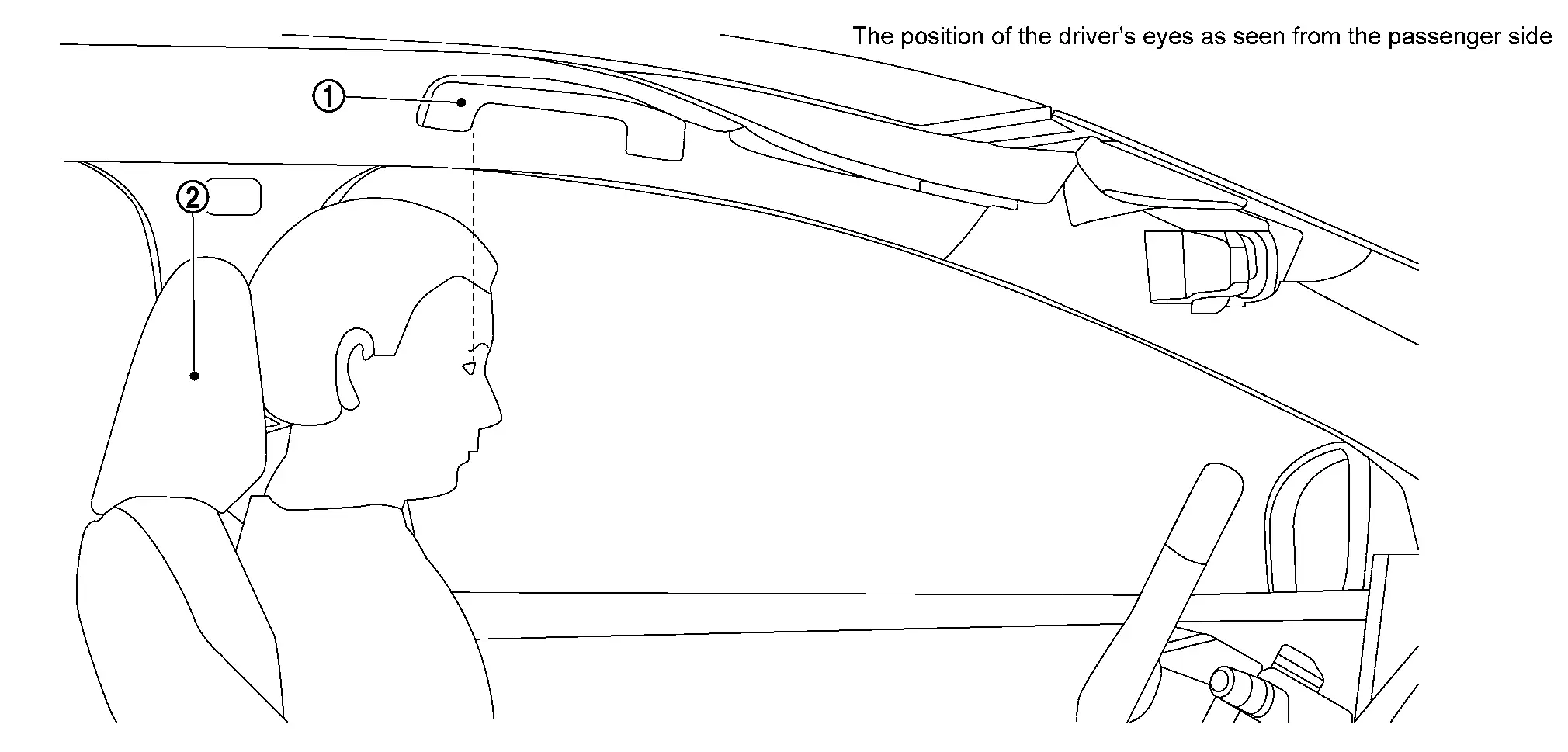
 |
Assist grip |  |
Head rest |
>>
GO TO 2.
PERFORM FACE RECOGNITION CHECK
With CONSULT
-
Ignition switch is ON.
-
Select "Work Support" in "Driver Monitor Camera".
-
Select “FACIAL RECOGNITION CHECK”.
-
Touch “Start”.
-
Check the note displayed on CONSULT and touch “Next”.
-
Follow CONSULT screen to check face recognition.
CAUTION:
-
Do not turn driver's face for 10 to 15 seconds approximately until the result is displayed.
-
Observe the following precautions while working.
-
Keep head on the headrest without moving seat position.
-
Do not wear sunglasses or masks.
-
Do not wear a hat or muffler that hides face.
-
Do not scratch face (do not hide eyes, nose, mouth).
-
Do not intentionally change facial expression (squinting, smiling, etc.).
-
Do not turn face any direction without instruction.
-
 NOTE:
NOTE:
-
Face recognition check is performed as following order;
Front of the vehicle
 → Right front pillar
 → Navigation screen
 → Front of the vehicle → Right door mirror
 → Left door mirror
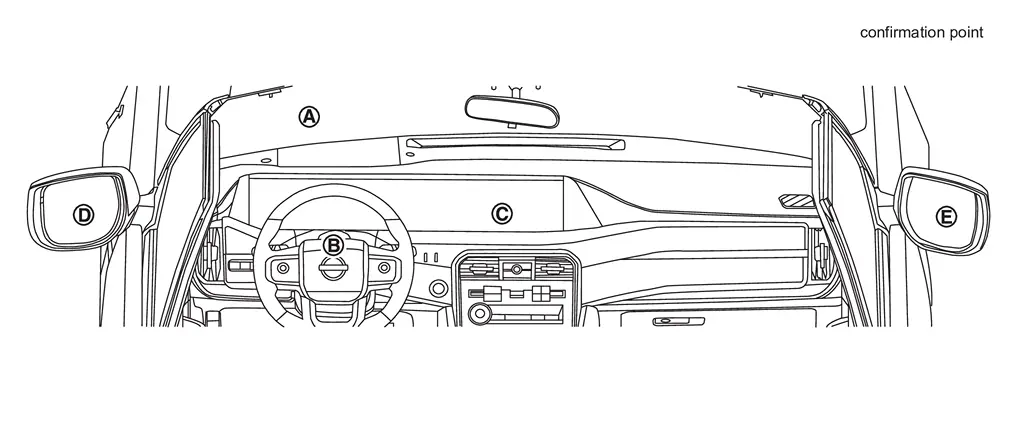
-
Perform twice only in front of the vehicle.
-
-
Confirm each check result.
NOTE:
-
When the result is "NG" and the precaution is surely followed, touch "Next."
-
When the result is "NG" and the precaution is not followed, touch "Retry."
-
>>
GO TO 3.
SAVE RESULT
With CONSULT
-
After completing all the work, touch "Screen Capture" to save the screen.
-
After saving the screen, touch "Save" to save the log information.
>>
WORK END
Other materials
NissanConnect Owner's Manual
QR code (U.S. only)
The Nissan Armada NissanConnect Owner’s Manual can be conveniently accessed by
scanning the QR code shown above (U.S. models only) or by using the printed manual
included with your vehicle.
This comprehensive Nissan Armada digital guide provides detailed explanations ...
Transfer Range Position Sensor
Exploded View
Transfer assembly
Transfer range position sensor
: N·m (kg-m, in-lb)
Removal and Installation
WARNING:
Jacking up or lift up the vehicle may the vehicle height to go down which cause a personal injury and/or damage to the air sus ...
Normal Operating Condition
Description
The following symptoms are normal operations, and they do not indicate a malfunction. Symptom Cause Action to take Reference
Exit assist function do not operate.
Exit assist function is disabled.
Change the settings.
Description
Memory function, exit assist function, entry ...