
Nissan Armada 2025-2026 Owner's Manual: Driving recorder system interface
Touch "
 "
on the Launch Bar to access the applications menu.
"
on the Launch Bar to access the applications menu.
Select the "Dash Cam" key to open the Nissan Armada driving recorder interface.
The "Dash Cam" shortcut can also be configured within the home screen of the Nissan Armada touchscreen display for quicker access.
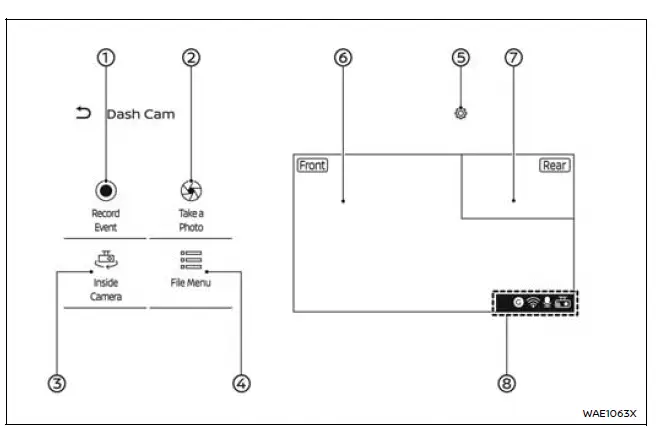
- Record Event
Touch to manually initiate recording in emergency situations within the Nissan Armada.The system automatically includes footage from approximately 10 seconds before activation and continues recording for about 25 seconds afterward.
- Take a Photo
Capture and save a still image from the current Nissan Armada camera view. - Inside Camera/Outside Camera
Switch between interior and exterior camera views for better monitoring. - File Menu
View, manage, or delete recorded files and images stored on the Nissan Armada system. -

Access the Nissan Armada driving recorder settings menu. - Camera screen (main)
Displays the live feed from the front camera of the Nissan Armada. - Camera screen (secondary)
Shows the rear camera view. Tap to swap it with the main display. - Informational icons
Indicate the operational status of the Nissan Armada driving recorder system.
NOTE:
- Displayed camera images in the Nissan Armada may have a slight delay compared to real-time conditions.
- While driving, live camera display is disabled for safety reasons. However, "Record Event" and "Take a Photo" functions remain accessible.
The Nissan Armada Record Event feature operates in two modes:
1. Manual activation
Recording begins when the driver presses the "Record Event" button on the display.
2. Automatic activation
Recording is triggered automatically by events such as collisions or unexpected impacts.
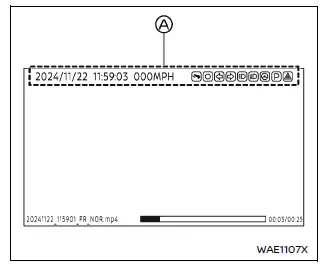
Recording playback screen (example)
- Overlay information
The Nissan Armada overlay information may include:
- Date and time stamps
- Vehicle speed data
- System function indicators
Note that overlay information is not displayed on interior camera recordings.
NOTE:
- Vehicle speed data displayed in the Nissan Armada recordings may lag slightly behind the video footage.
- There is no guarantee that recorded speed data will be accepted as legal evidence in all cases.
The Nissan Armada driving recorder interface is designed to be intuitive and user-friendly, allowing quick access to essential functions while maintaining a focus on driving safety and convenience.
 About microSD card
WARNING
Never allow children to handle or play with the microSD card used in your
Nissan Armada. Due to its small size, accidental swallowing may occur, which can
lead to choking, serious injury, ...
 Informational icons
The Nissan Armada driving recorder system uses a set of informational icons to
clearly indicate its current operating status. These icons are displayed on the
driving recorder screen and provide r ...
Other materials:
AEB with Pedestrian Detection system limitations
WARNING
The Nissan Armada AEB with Pedestrian Detection system includes important
operational limitations. Failure to understand and follow these limitations when
driving the Nissan Armada may result in serious injury or even fatal consequences.
The Nissan Armada AEB with Pedestrian Detecti ...
General maintenance
Basic information
During everyday operation of your Nissan Armada, it is essential to carry out
general maintenance tasks on a consistent basis as outlined in this section. Regular
attention helps preserve performance, safety, and long-term durability. If you notice
any unusual sounds, vibrat ...
Uniform tire quality grading
DOT (Department Of Transportation) tire quality grading standards apply to all
passenger vehicle tires, including those used on the Nissan Armada.
These grades indicate tire performance characteristics and can typically be found
on the tire sidewall between the tread shoulder and the maximum se ...

0.0042