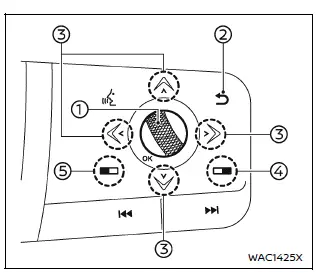
Type A
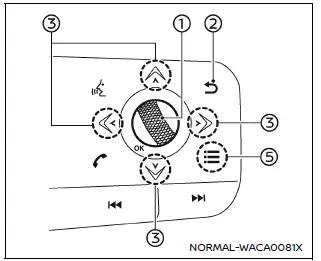
Type B
The vehicle information display in the Nissan Armada is designed to provide the driver with clear, customizable, and real-time information. It can be easily controlled using the multifunction dial and buttons located on the steering wheel, allowing seamless interaction without distracting from driving.
In the Nissan Armada, navigating through menus and adjusting settings becomes intuitive thanks to the ergonomic layout of the steering-wheel-mounted controls.
- Scroll dial – Used to browse through menu items and adjust or confirm selections within the Nissan Armada vehicle information display. This dial supports vertical navigation (up/down) and can be pressed to confirm a selection.
-
 – Returns you to the previous menu screen, making navigation within the Nissan
Armada interface quick and user-friendly.
– Returns you to the previous menu screen, making navigation within the Nissan
Armada interface quick and user-friendly. - Directional arrows (up/down/left/right) – These buttons allow switching between different display categories such as trip data, fuel economy, and driver assistance features in the Nissan Armada.
- Touchscreen control button – Enables control of the central touchscreen system directly from the steering wheel, enhancing convenience and safety while driving the Nissan Armada.
- Function button (Type A / Type B) – Type A: Activates direct interaction with the vehicle information display via steering wheel controls. Type B: Opens the "Shortcut Menu" for faster access to frequently used functions in the Nissan Armada.
Shortcut Menu
In the Nissan Armada, pressing button 5 when it is highlighted in orange (Type
A), or pressing the
 button (Type B), will bring up the "Shortcut Menu" on the display. This feature
allows quick access to commonly used settings without navigating through multiple
menus.
button (Type B), will bring up the "Shortcut Menu" on the display. This feature
allows quick access to commonly used settings without navigating through multiple
menus.
Select the desired option by rotating the scroll dial and pressing it to confirm.
The Nissan Armada Shortcut Menu may include the following options:
- Trailer Blind Spot
Allows activation or deactivation of the trailer blind spot monitoring system, improving safety when towing with the Nissan Armada. - Change Meter View
Enables customization of the instrument cluster layout to match driver preferences. - Audio Source
Provides quick selection between available media sources such as radio, Bluetooth, or connected devices. - Driver Assistance
Gives access to advanced safety settings, allowing the driver to configure assistance systems in the Nissan Armada according to driving conditions.
Startup display
When the ignition switch is turned to the ON position, the Nissan Armada vehicle information display may show various startup screens depending on the vehicle configuration and previous settings.
Available display screens in the Nissan Armada may include:
- Home
- Blank screen
- Drive Computer
- Fuel Economy
- ECO Pedal Guide
- Air Suspension status
- Off-Road information
- Tire Pressure Monitoring
- Idling Stop system
- AWD Torque distribution
- Navigation guidance
- Compass
- Audio information
- Driver Assistance systems
- ProPILOT Assist status
- Speed Limit Sign recognition
- Warnings and alerts
- Settings menu
In the Nissan Armada, warning messages will only appear when an issue or alert is detected. This ensures that the driver receives only relevant and timely information without unnecessary distractions.
For additional details about warnings and indicators, refer to the dedicated section on vehicle information display alerts.
To customize which data and menus are shown, access the "Settings" section in the Nissan Armada display system. This flexibility allows drivers to tailor the interface to their personal driving habits and preferences.
Additional note: The advanced interface of the Nissan Armada vehicle information display enhances driving comfort by combining intuitive controls with comprehensive data visualization, ensuring a safer and more connected driving experience.
Other materials
RAB system limitations
WARNING
The following limitations apply to the Rear Automatic Braking (RAB) system
in the Nissan Armada. Failure to fully understand and follow these limitations may
result in serious injury or even fatal accidents.
When the Nissan Armada approaches an obstacle while the accelerator or
b ...
Low Tire Pressure Warning Lamp Does Not Turn on
Description
The low tire pressure warning lamp does not turn ON when the ignition switch is placed ON.NOTE:
The low tire pressure warning lamp turn ON for approximately 1 second and then turns OFF when the ignition switch is placed ON. This is to check that no abnormal condition is present in the ti ...
Normal Operating Condition
Symptom Table
NOTE:
For Navigation system operation information, refer to Navigation system Owner's Manual.BASIC OPERATIONS Symptom Possible cause Possible solution
No image is displayed.
The brightness is at the lowest setting.
Adjust the brightness of the display.
The systems in the vid ...