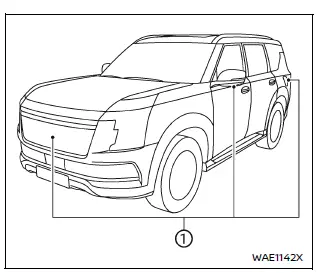
The Nissan Armada Intelligent Around View Monitor utilizes multiple strategically positioned cameras 1, including units mounted in the front grille, beneath the outside mirrors, and above the rear license plate, to create a comprehensive multi-angle view of the vehicle surroundings.
Basic information
To activate the Nissan Armada Intelligent Around View Monitor, turn the ignition
switch to the ON position and press the CAMERA/
 button, or simply shift the transmission into the R (Reverse) position.
The Nissan Armada display system will automatically switch to the camera view, providing enhanced visibility for parking and maneuvering.
If the CAMERA/
 button is pressed while the transmission is not in Reverse, the Nissan Armada screen
will return to the previous display after approximately 3 minutes.
button is pressed while the transmission is not in Reverse, the Nissan Armada screen
will return to the previous display after approximately 3 minutes.
This intelligent Nissan Armada system ensures convenience while preventing unnecessary distraction during normal driving conditions.
Available views
WARNING
- The Nissan Armada distance and width guide lines are intended for reference only and are most accurate when the vehicle is on a flat, paved surface. Actual distances may vary significantly.
- The Nissan Armada bird’s-eye view and guidelines can be affected by vehicle
load, number of passengers, suspension position, road conditions, and incline.
Always confirm surroundings visually before maneuvering.
- Using different tire sizes on the Nissan Armada may result in inaccurate predictive course lines and distorted camera views.
- When driving uphill, objects in the Nissan Armada display may appear farther than they actually are. When driving downhill, objects may appear closer than their true distance.
- Images displayed on the Nissan Armada monitor may appear reversed compared to mirrors.
- Always use mirrors and direct observation in addition to the Nissan Armada camera system to judge distances accurately.
- The wide-angle lens of the Nissan Armada camera system may distort perceived distance between objects.
- On slippery or snow-covered roads, the Nissan Armada predictive course lines may not match the actual path of the vehicle.
- The displayed Nissan Armada vehicle width and predictive lines may appear wider than the actual vehicle dimensions.
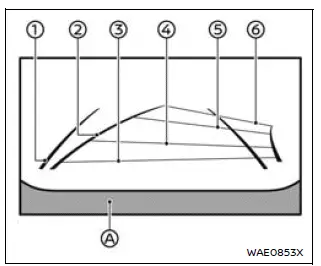
Front view
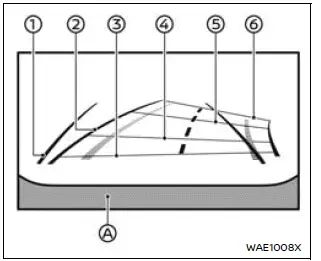
Rear view
Front and rear view:
The Nissan Armada monitor displays dynamic guiding lines that help estimate vehicle width and distance relative to the vehicle body line A.
Vehicle width guide lines 1:
These lines indicate the approximate width of the Nissan Armada, assisting in precise positioning during parking.
Predictive course lines 2:
The Nissan Armada predictive course lines move dynamically based on steering wheel input, showing the expected trajectory of the vehicle.
This feature significantly enhances parking accuracy and maneuvering confidence.
Distance guide lines:
The Nissan Armada display uses color-coded lines to indicate approximate distances from the vehicle:
- Red line 3: approximately 1.5 ft (0.5 m)
- Blue line 4: approximately 3 ft (1 m)
- Blue line 5: approximately 7 ft (2 m)
- Blue line 6: approximately 10 ft (3 m)
The Nissan Armada front camera view is automatically disabled when the vehicle speed exceeds 12 MPH (20 km/h) to ensure driver focus remains on the road.
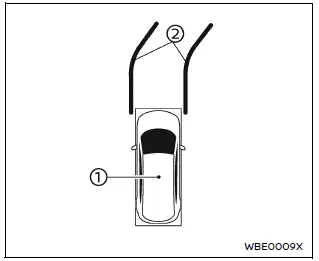
Example
Bird's-eye view:
The Nissan Armada bird’s-eye view provides a simulated overhead perspective of the vehicle, helping the driver understand positioning within tight spaces.
The Nissan Armada vehicle icon 1 represents the current position of the vehicle, while surrounding objects are displayed in relation to it.
Keep in mind that distances shown in the Nissan Armada bird’s-eye view may differ from actual distances due to camera stitching and perspective.
The predictive course lines 2 indicate the expected movement path of the Nissan Armada based on steering input.
WARNING
- Objects in the Nissan Armada bird’s-eye view may appear farther than they actually are.
- Tall objects such as curbs or other vehicles may appear distorted or partially missing at the seams where camera images merge.
- Objects positioned above the camera field of view will not be displayed.
- If the Nissan Armada camera position shifts due to impact or dirt, the bird’s-eye image may become misaligned.
- Ground markings such as lines may appear uneven or distorted in the Nissan Armada display, especially farther from the vehicle.
The Nissan Armada Intelligent Around View Monitor combines multiple camera feeds into a single intuitive interface, delivering enhanced situational awareness and making parking significantly safer and easier.
However, even with these advanced Nissan Armada technologies, drivers should always remain attentive, use mirrors, and visually confirm surroundings to ensure maximum safety.
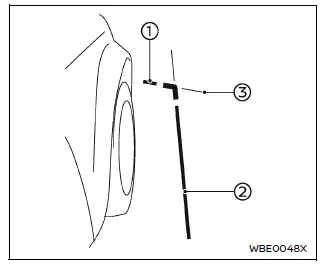
Front passenger's side
Front-side view:
The Nissan Armada front-side view provides a detailed perspective of the area around the front corners of the vehicle, helping the driver safely navigate tight spaces and avoid obstacles near the wheels.
Guiding lines:
The Nissan Armada system displays multiple guiding lines that represent the approximate width and front boundary of the vehicle, including both the driver’s and passenger’s sides.
The front-of-vehicle line 1 indicates the forward-most edge of the Nissan Armada, assisting with precise positioning when approaching obstacles.
The side-of-vehicle line 2 outlines the total width of the Nissan Armada, including the outside mirrors, helping prevent contact with nearby objects.
Extensions 3 of both the front and side lines are highlighted in blue, providing additional visual guidance and improving depth perception.
CAUTION
The Nissan Armada turn signal light reflection may appear similar to the side guide line. This is a normal visual effect and does not indicate a malfunction.
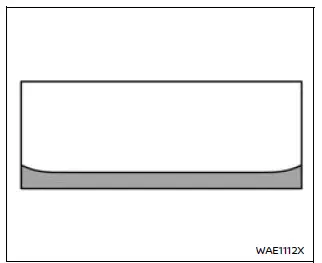
Front-wide view
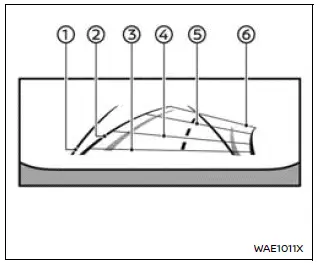
Rear-wide view
Front-wide/rear-wide view:
Unlike the standard split-screen front and rear views, the Nissan Armada front-wide and rear-wide views display a significantly broader field of vision across the entire screen.
This expanded perspective allows the driver to monitor blind corners on both sides of the Nissan Armada, making it especially useful in tight urban environments or when exiting intersections with limited visibility.
Vehicle width guide lines 1:
These lines indicate the approximate overall width of the Nissan Armada, helping maintain safe clearance from surrounding objects.
Predictive course lines 2:
The Nissan Armada predictive course lines dynamically adjust according to steering input, illustrating the expected trajectory of the vehicle in real time.
Distance guide lines:
The Nissan Armada system includes color-coded distance indicators to assist with accurate positioning:
- Red line 3: approximately 1.5 ft (0.5 m)
- Blue line 4: approximately 3 ft (1 m)
- Blue line 5: approximately 7 ft (2 m)
- Blue line 6: approximately 10 ft (3 m)
The Nissan Armada front-wide view is automatically disabled when the vehicle speed exceeds 12 MPH (20 km/h), ensuring that driver attention remains focused on the road.
Saved Locations:
The Nissan Armada system allows drivers to store specific locations where the front-wide view will automatically activate.
This feature is particularly beneficial when approaching intersections, narrow passages, or areas with limited visibility where additional camera support is required.
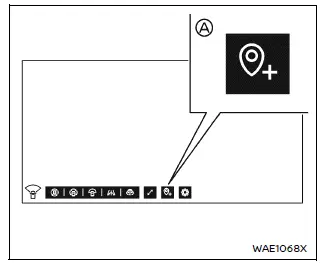
How to save the location:
When the Nissan Armada camera screen is active, touch the A key to register the current position as a saved location.
Towing mode (if so equipped)
When TOW mode is selected via the Nissan Armada Drive Mode Selector, the rear view display remains active even after shifting out of R (Reverse).
This extended visibility helps maintain awareness when maneuvering with a trailer attached.
The Nissan Armada rear view will automatically deactivate if any of the following conditions occur:
- Vehicle speed exceeds 6 MPH (10 km/h)
- More than 8 seconds have passed
- The Nissan Armada moves forward more than 26 feet (8 m)
4WD mode (if so equipped)
When the Nissan Armada 4WD system is set to "4H" or "4L", the Invisible Hood View is automatically displayed, even when the transmission is not in Reverse.
This feature enhances off-road visibility by providing a simulated view beneath the front of the Nissan Armada.
If the vehicle speed exceeds 12 MPH (20 km/h), the display will turn off automatically. When the speed decreases below 10 MPH (16 km/h), the view will reappear.
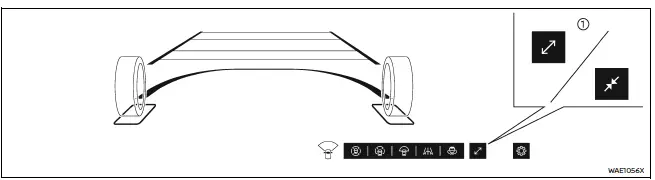
Example
Ultra Wide view
The Nissan Armada Ultra Wide view delivers an expanded panoramic image across both the instrument cluster and touchscreen display.
This advanced Nissan Armada feature is available for both the front-wide view and the Invisible Hood View, significantly increasing the driver’s field of vision.
How to ON/OFF the Ultra Wide view:
When the Nissan Armada camera interface is active, touch the 1 icon to enable or disable Ultra Wide view.
3D view
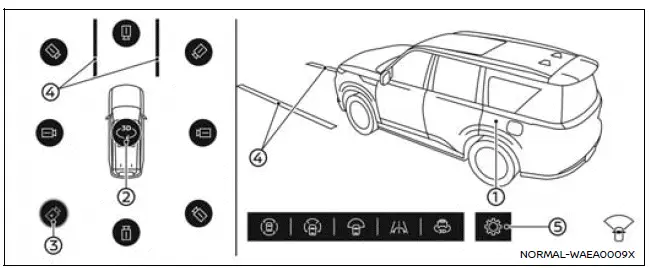
The Nissan Armada 3D view provides an immersive 360-degree visualization of the vehicle, allowing the driver to rotate and inspect surroundings from multiple angles.
This feature enhances spatial awareness and makes complex parking maneuvers in the Nissan Armada more precise and controlled.
The Nissan Armada 3D view delivers a full 360-degree visualization around the vehicle, allowing the driver to clearly understand positioning and predict the trajectory when maneuvering into parking spaces.
By selecting the rotation icon 2, the Nissan Armada vehicle image 1 along with its surroundings will expand and rotate smoothly in a full 360º motion, giving a comprehensive perspective of nearby obstacles and space.
In addition, the Nissan Armada display allows manual interaction—simply swipe the vehicle image to rotate the view and inspect the surroundings from different angles (if equipped).
Up to 8 different camera perspectives can be selected in the Nissan Armada by touching the camera position icon 3, offering flexible control depending on driving conditions.
When the Nissan Armada speed exceeds 10 MPH (16 km/h), only the three forward-facing cameras aligned with the direction of travel remain selectable to ensure safe and relevant visual feedback.
The predictive course lines 4 dynamically indicate the expected path of the Nissan Armada based on steering input, improving maneuvering precision.
WARNING
- The distance between objects displayed in the Nissan Armada 3D view may differ from the actual distance due to camera processing and perspective.
- There are areas around the Nissan Armada that may not be visible in the system display. Always verify surroundings visually.
Automatic 360º Moving:
When the CAMERA/
 button is pressed for the first time after switching the ignition to ON, the Nissan
Armada system automatically activates the Auto 360º Moving function.
button is pressed for the first time after switching the ignition to ON, the Nissan
Armada system automatically activates the Auto 360º Moving function.
During this process, the vehicle image and surrounding environment rotate automatically, allowing the driver to quickly check all sides of the Nissan Armada without manual interaction.
How to ON/OFF the Auto 360º Moving feature
When the Nissan Armada camera interface is displayed, tap
 5 to open the settings menu.
Then select "Automatic 360º Moving" to enable or disable this feature according to your preference.
Example
Invisible Hood View
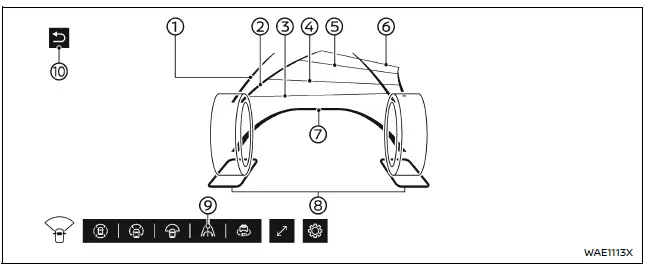
The Nissan Armada Invisible Hood View provides a unique virtual perspective that allows the driver to "see through" the front of the vehicle, displaying the road surface beneath the hood.
This Nissan Armada feature is particularly useful when aligning wheels in narrow spaces, such as entering an automatic car wash or avoiding curbs and obstacles during low-speed driving.
NOTE:
The Nissan Armada Invisible Hood View is a synthesized image created from multiple front camera inputs and does not represent a direct real-time view beneath the vehicle.
Vehicle width guide lines 1:
These lines indicate the approximate width of the Nissan Armada to assist in accurate positioning.
Predictive course lines 2:
The Nissan Armada predictive course lines respond dynamically to steering input, showing the expected movement path of the vehicle.
Distance guide lines:
The Nissan Armada display uses color-coded lines to represent approximate distances:
- Red line 3: approximately 1.5 ft (0.5 m)
- Blue line 4: approximately 3 ft (1 m)
- Blue line 5: approximately 7 ft (2 m)
- Blue line 6: approximately 10 ft (3 m)
The Nissan Armada Invisible Hood View is automatically disabled when the vehicle speed exceeds 12 MPH (20 km/h).
Vehicle outline 7:
This outline highlights the front contour of the Nissan Armada, helping the driver judge proximity to obstacles.
Wheel area lines 8:
These lines indicate the position of the Nissan Armada front wheels, assisting in precise alignment.
How to ON/OFF the Invisible Hood View:
When the Nissan Armada camera display is active, tap the 9 icon to enable Invisible Hood View.
To deactivate it, switch to another camera mode or press the return key 10.
Rear zoom view
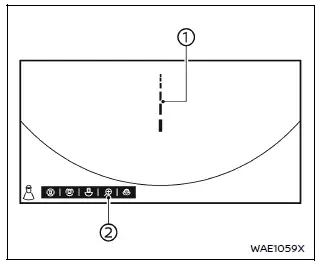
The Nissan Armada rear zoom view provides a magnified image of the area directly behind the vehicle, allowing for precise positioning.
This feature is especially useful when connecting a trailer or maneuvering in tight spaces.
Predictive center line 1:
The Nissan Armada predictive center line indicates the central alignment path of the vehicle, helping ensure accurate positioning.
How to ON/OFF the rear zoom view:
When the Nissan Armada camera screen is displayed, tap icon 2 to activate the rear zoom view.
To deactivate, switch to another camera view or press the return key located in the corner of the display.
The Nissan Armada Intelligent Around View Monitor system combines advanced imaging technologies with intuitive controls, delivering enhanced visibility, precision, and confidence during parking and low-speed maneuvers.
Other materials
RearView Monitor system operation
The Nissan Armada RearView Monitor system utilizes a rear-mounted camera 1, positioned
just above the license plate, to provide a clear and wide-angle view behind the
vehicle.
To activate the Nissan Armada RearView Monitor, turn the ignition switch to the
ON position and shift the transmi ...
Condenser
Exploded View
Radiator
Condenser outlet pipe
O-ring
Condenser & liquid tank assembly
Condenser seal
Refrigerant pressure sensor
Condenser inlet pipe
: Pawl
: Always replace after every disassembly.
: N·m (kg-m, in-lb)
, , : Indicate ...
Sunshade
Exploded View
Refer to Exploded View.
Removal and Installation
REMOVALRemove rear moonroof glass. Refer to Removal and Installation.
Disengage sunshade stay using a remover tool (B) from sunshade slider as shown by the arrow in the figure.
CAUTION:
Apply protective tape (C) on remover tool to pro ...