Touch "
 "
on the Launch Bar to access the applications menu.
"
on the Launch Bar to access the applications menu.
Select the "Dash Cam" key to open the Nissan Armada driving recorder interface.
The "Dash Cam" shortcut can also be configured within the home screen of the Nissan Armada touchscreen display for quicker access.
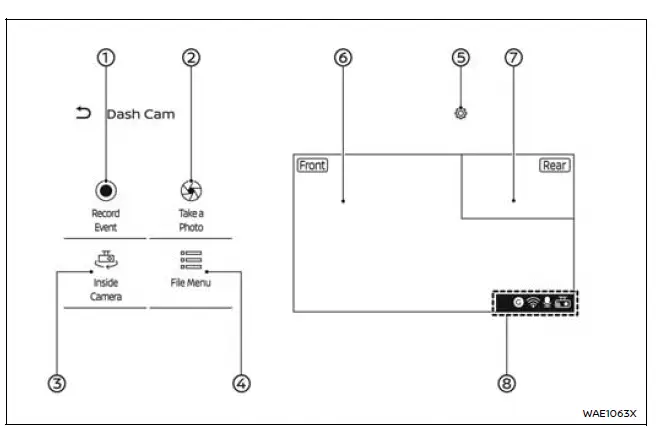
- Record Event
Touch to manually initiate recording in emergency situations within the Nissan Armada.The system automatically includes footage from approximately 10 seconds before activation and continues recording for about 25 seconds afterward.
- Take a Photo
Capture and save a still image from the current Nissan Armada camera view. - Inside Camera/Outside Camera
Switch between interior and exterior camera views for better monitoring. - File Menu
View, manage, or delete recorded files and images stored on the Nissan Armada system. -

Access the Nissan Armada driving recorder settings menu. - Camera screen (main)
Displays the live feed from the front camera of the Nissan Armada. - Camera screen (secondary)
Shows the rear camera view. Tap to swap it with the main display. - Informational icons
Indicate the operational status of the Nissan Armada driving recorder system.
NOTE:
- Displayed camera images in the Nissan Armada may have a slight delay compared to real-time conditions.
- While driving, live camera display is disabled for safety reasons. However, "Record Event" and "Take a Photo" functions remain accessible.
The Nissan Armada Record Event feature operates in two modes:
1. Manual activation
Recording begins when the driver presses the "Record Event" button on the display.
2. Automatic activation
Recording is triggered automatically by events such as collisions or unexpected impacts.
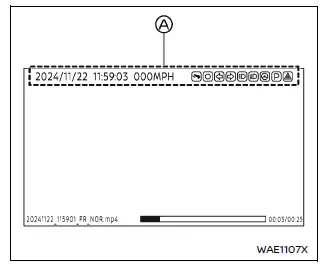
Recording playback screen (example)
- Overlay information
The Nissan Armada overlay information may include:
- Date and time stamps
- Vehicle speed data
- System function indicators
Note that overlay information is not displayed on interior camera recordings.
NOTE:
- Vehicle speed data displayed in the Nissan Armada recordings may lag slightly behind the video footage.
- There is no guarantee that recorded speed data will be accepted as legal evidence in all cases.
The Nissan Armada driving recorder interface is designed to be intuitive and user-friendly, allowing quick access to essential functions while maintaining a focus on driving safety and convenience.
Other materials
Brake system
Braking precautions
The brake system in the Nissan Armada is engineered with dual independent hydraulic
circuits to enhance safety. This design ensures that even if one circuit fails,
braking capability is still maintained on two wheels, allowing the driver to retain
a level of control in eme ...
Driver Knee Air Bag Module
Exploded View
Steering member
Driver knee air bag module
: Always replace after every disassembly.
: N·m (kg-m, in-lb)
Removal and Installation
WARNING:
Always observe the following items for preventing accidental activation.
Before servicing, ignition switch OFF, di ...
Second Seat Cushion Finisher
Disassembly and Assembly
CAUTION:
When disassemble, always use a remover tool that is made of plastic to prevent damage.OUTSIDE SEAT CUSHION FINISHER OUTERDisassemblyDisengage fixing pawls, and then remove reclining knob cap.
: Pawl
Disengage fixing portion using a remover tool (A) according ...